
Team SPG Help
How Do I Build and Track a Budget in Team SPG?
Prefer to watch? See the short walkthroughs in the Video Library.
The Budget tab is three steps on one page: Budget, Actuals, and Report. Build the plan one line at a time, with a GL code on each line so it matches your books. Type what each month really came to as the year goes. The Report shows budget vs. actual by line for any month and year to date, with your P&L beside it.
Where to Find It
Open Financials > Budget in the left sidebar. The three steps sit under the title; click one to switch. The Year picker at the top right moves between years. The first time you open a year with no budget, the page offers Copy last year's budget (when you have one) or Start blank.
What Comes With Each Plan
Building and saving the budget (Step 1) is part of SOS Lite. Entering actuals (Step 2) and the budget vs. actual Report (Step 3) are part of SOS Pro. On SOS Lite you can still open both steps to see how they work; clicking a month cell or the banner on the Report starts your SOS Pro trial. See Settings > Plan & Billing for your current plan.
Step 1: Budget
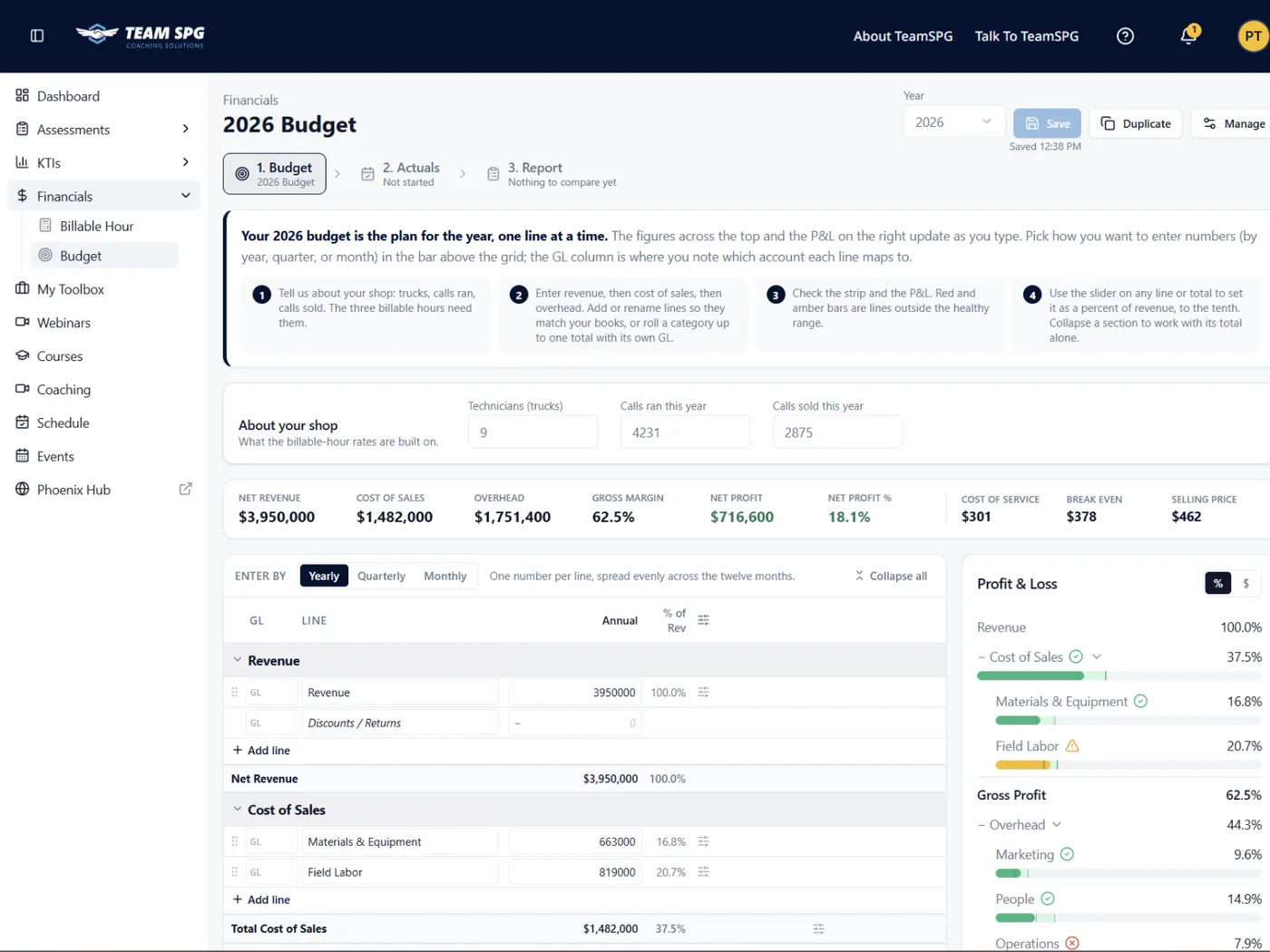
The grid has three sections: Revenue, Cost of Sales, and Overhead. Overhead is split into five categories: Marketing, People, Operations / Facility, Vehicle & Fleet, and Administrative. Every line has a GL column for the account number or name from your books, and a % of revenue column that updates as you type.
About your shop sits above the grid: technicians, calls ran, and calls sold this year. The three billable hours in the strip are built from them.
Pick how you want to enter numbers with the Enter by toggle above the grid:
- Year shows one annual column. What you type is spread evenly across the twelve months.
- Quarter shows four columns you type in. Each quarter is spread evenly across its three months.
- Month shows all twelve.
In Quarter and Month, the shaded Annual total column on the left adds up what you typed; you cannot edit it there. Switching the toggle never loses numbers; it only changes which columns you edit. Every amount is a whole dollar; cents are rounded. You can type in any cell, press Enter or Tab to move, use the arrow keys, or paste a block copied from a spreadsheet and it fills to the right and down from the cell you are in. The grid scrolls inside the page, and the line names and column headers stay put while you scroll.
- Add line under any group adds a blank line. Rename a line by clicking its name; remove one with the trash can. Revenue ends with a Discounts / Returns line that subtracts from the total; it shows in parentheses, like (1,200), and always stays last.
- Reorder lines by dragging the grip at the left edge of a line up or down within its group. Lines cannot move between groups, and Discounts / Returns stays where it is.
- Adjust on any line, category, or section opens a slider that sets it as a percent of revenue, to the tenth of a percent. Revenue lines adjust by percent change instead. Moving a total scales every line under it in proportion. Click the percent box, type a number, and press Enter to set it and close; the X in the corner, Escape, or clicking away also close it. Put it back undoes the change.
- Roll up on an overhead category replaces its lines with one total line that has its own GL code, for categories you track as one account in your books. Break into lines puts the detail lines back, scaled to the total you entered.
- The chevron on any section or category header collapses it to one row that still shows its totals and keeps its Adjust control. Collapse all and Expand all sit above the grid. Collapsing changes nothing in the data.
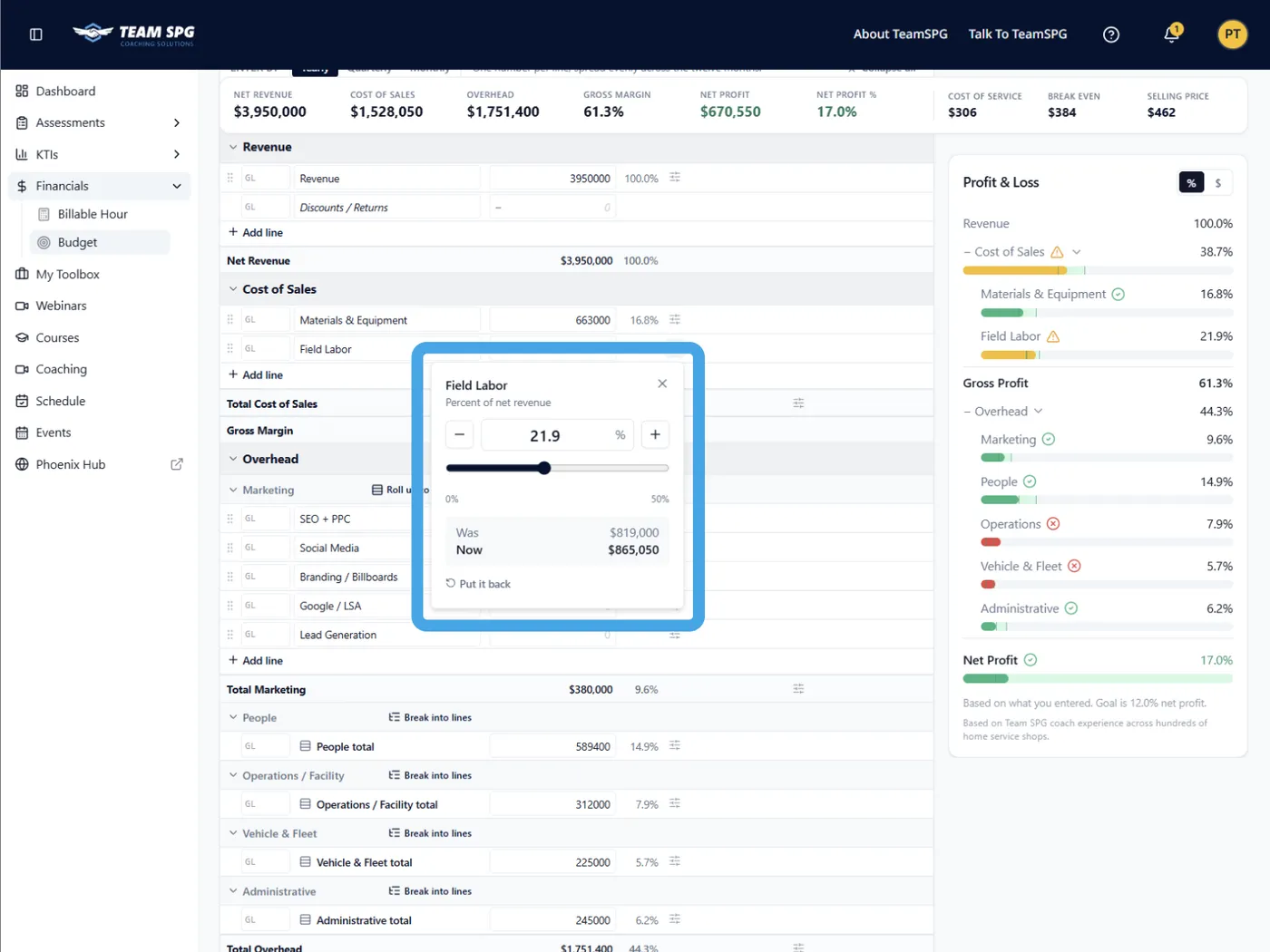
The strip across the top shows net revenue, each section as a percent of revenue, net profit, and the three billable hours. The P&L on the right shows each category against healthy ranges; red and amber bars mark the ones outside them.
Changes save on their own about a second after you stop typing. The Save button at the top right saves right away, and the line under it tells you where things stand: Unsaved changes, Saving, or Saved with the time.
Step 2: Actuals (SOS Pro)
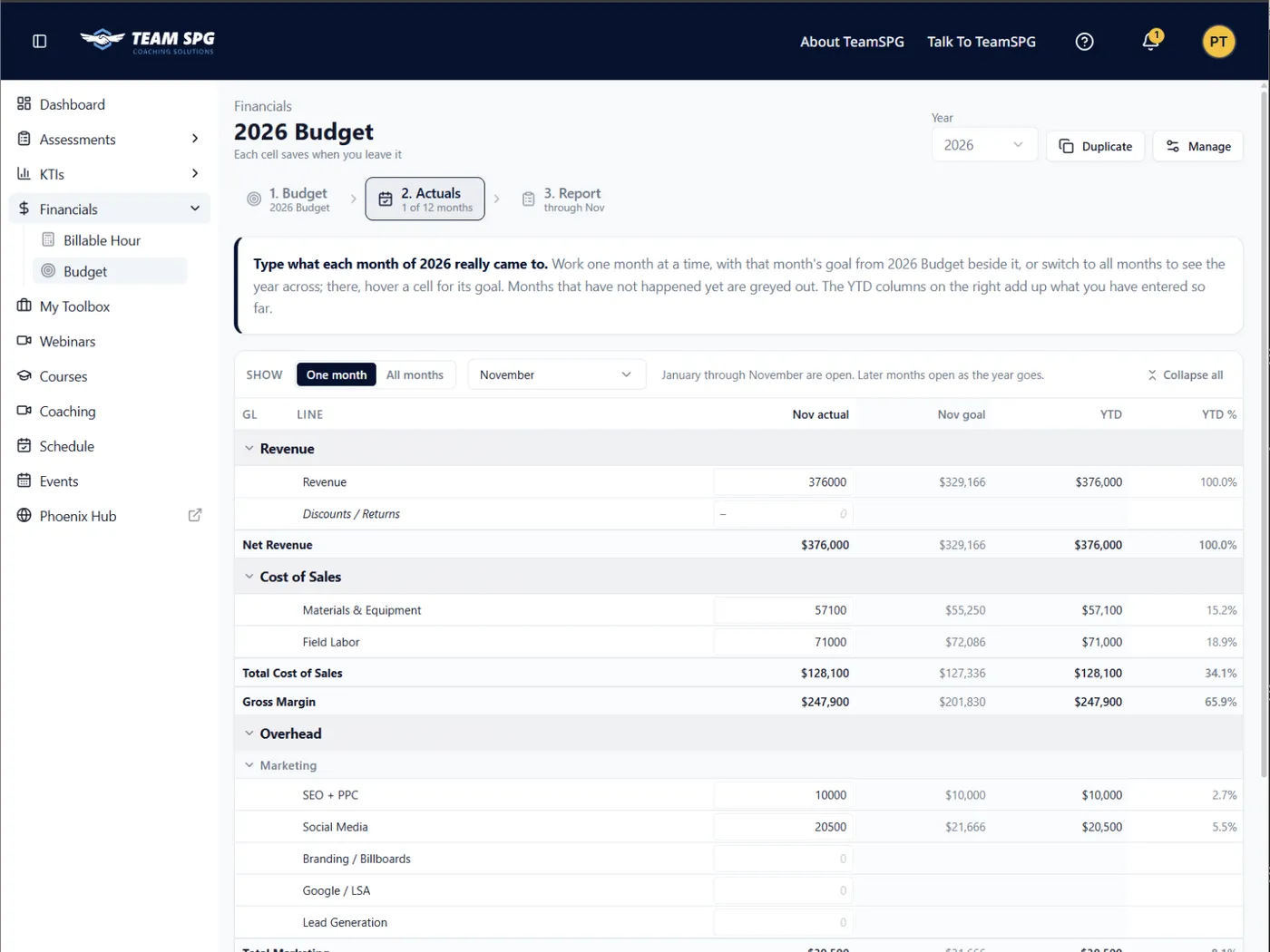
The same lines, one month at a time. The page opens on the next month to fill in, with a Goal column beside it showing that month's number from your default budget. Type what the month really came to; each cell saves as soon as you leave it. Use the Month picker above the grid to move to another month. Only months that have already started are open; later months open as the year goes.
Switch to All months above the grid to see the whole year across. There the goals leave the grid to keep it readable; hover over any cell (or tab into it) to see that month's goal. The YTD columns on the right add up what you have entered. The page remembers which view you used last.
Step 3: Report (SOS Pro)
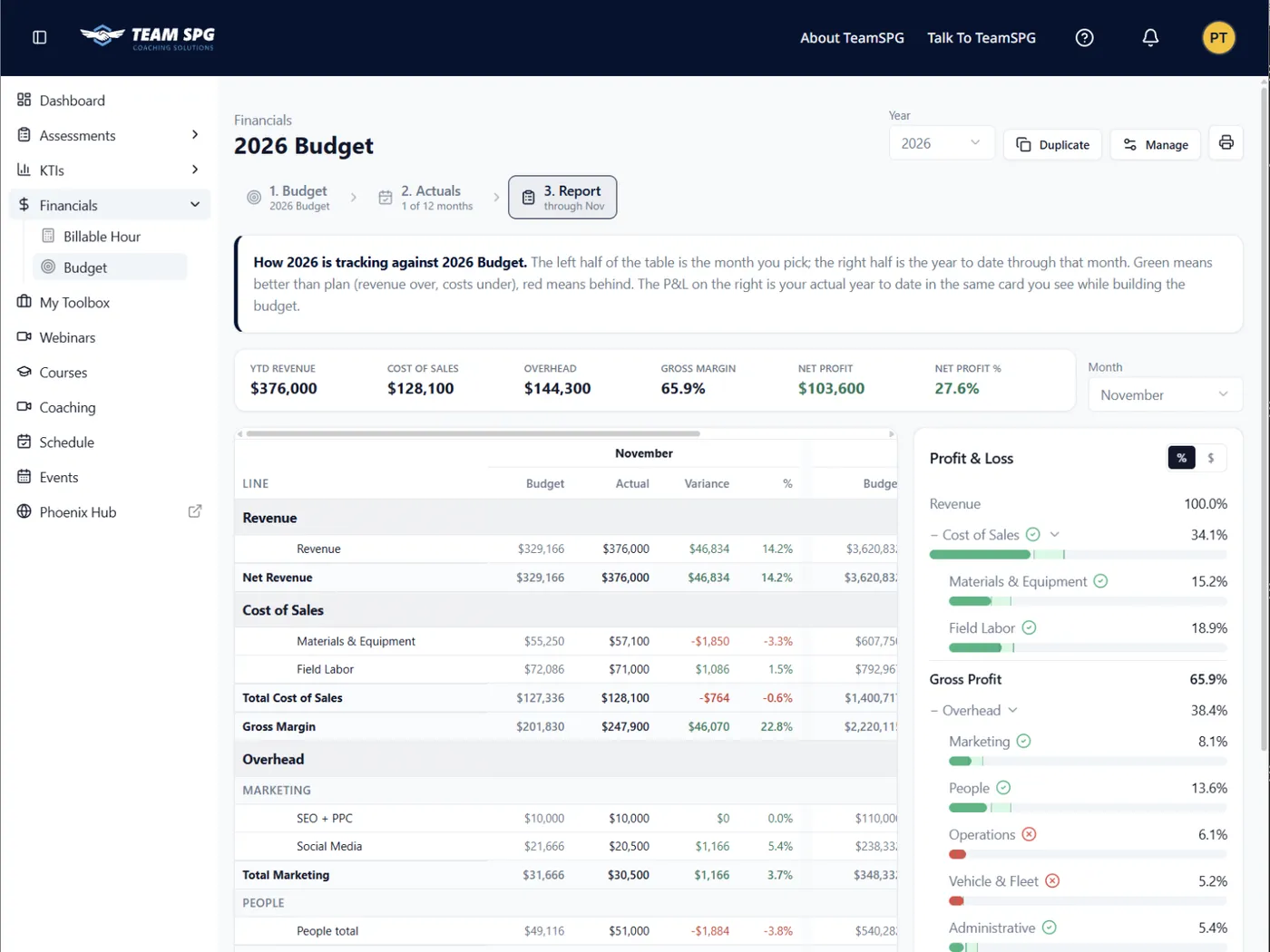
Pick a Month at the top right. The left half of the table is that month: budget, actual, the difference, and the percent of revenue each one came to. The right half is the year to date through that month. Green means on plan or better (revenue over, costs under, discounts under); red means behind. The strip and the P&L on the right show your actual year to date in the same shape you used while building the budget; the three billable hours are not shown here because actuals do not carry hours. Use the print button to take it to a meeting.
More Than One Budget for a Year
SOS Pro members can keep several budgets for the same year, for example a realistic plan and a stretch plan. Duplicate copies the open budget and asks for a name. When a year has more than one, a Version of {year} picker appears next to the year. The one marked (default) is the one Actuals and the Report compare against. SOS Lite members keep one budget per year.
Renaming, Changing the Year, Making Default, Clearing, or Deleting a Budget
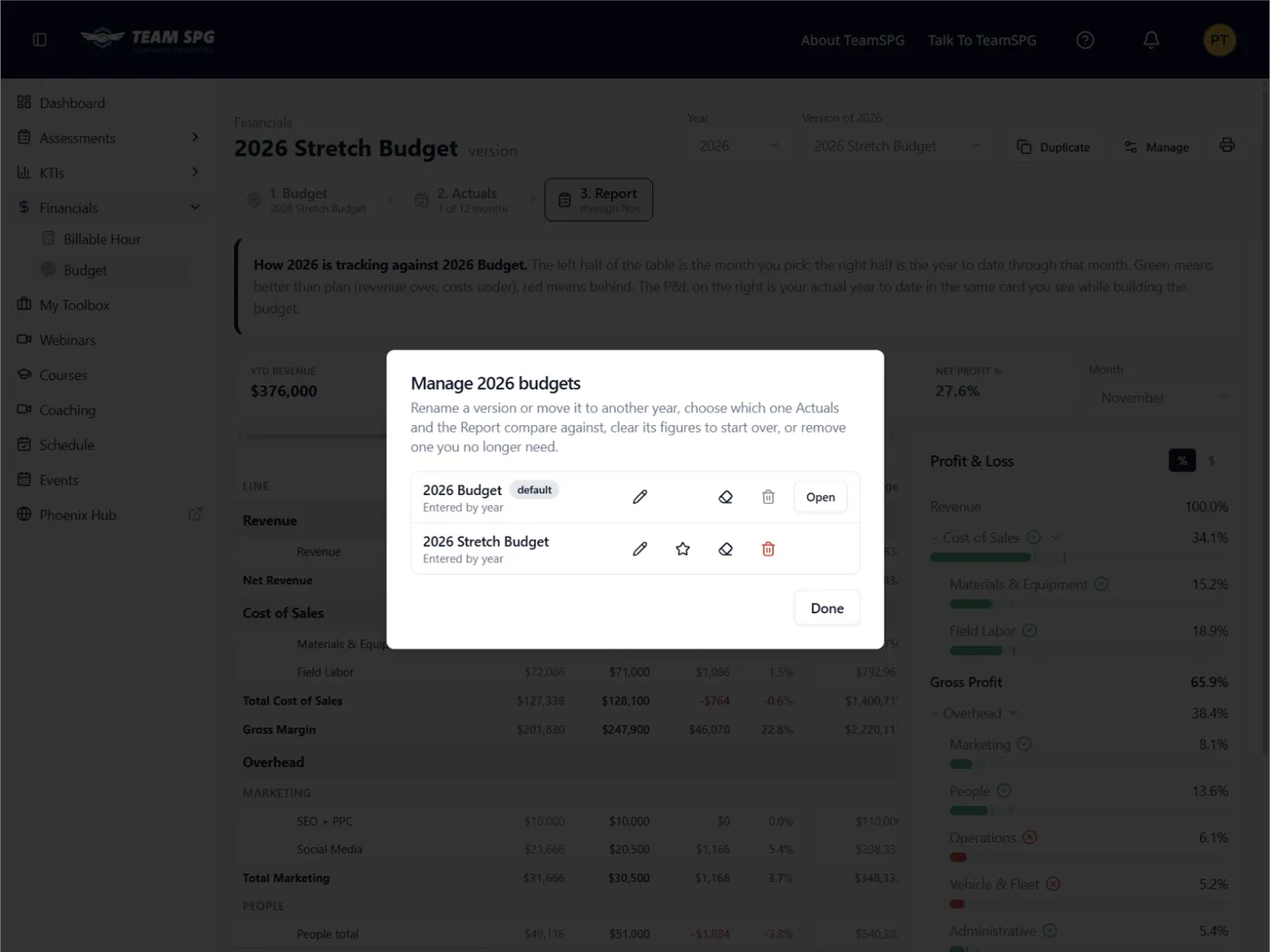
Click Manage at the top right. The dialog lists every version of the year:
- Rename with the pencil. The same dialog has a Year picker: choose a different year to move the budget there, for example when you built next year's plan under the wrong year. Any actuals typed against it move with it. If the new year already has a default budget, the moved one arrives as another version of that year; SOS Lite members, who keep one budget per year, cannot move a budget into a year that already has one.
- Make default with the star. The actuals you have typed move to the new default by matching GL code first, then line name, so the Report keeps working.
- Clear figures with the eraser. Every budget dollar goes to zero; your lines, GL codes, line order, and any actuals you have typed stay. Use it to start a year over without rebuilding the lines. It asks you to confirm and cannot be undone.
- Open a version without going through the picker.
- Delete with the trash can. The default cannot be deleted while the year has other versions; make one of them the default first. The last budget for a year cannot be deleted from this dialog. Only the account owner, a co-owner, or a leader can delete a budget, so a manager with financials access can open Manage and see the trash can but cannot complete the delete.
Frequently Asked Questions
Should I enter by year, quarter, or month?
Start by year to get the shape of the plan quickly, then switch to quarter or month for the lines that really move with the season, like marketing or seasonal help. The toggle only changes which columns you edit, so you can go back and forth.
What does the GL column do?
It is a note to yourself. Put the account number or name from your accounting software on each line so that when you enter actuals you know exactly which account to pull. Nothing is imported from it.
What happens to my actuals when I make a different version the default?
They follow. Each actual is matched to a line on the new default by GL code first, then by line name. Lines that do not match on either keep their actuals in the background and show them again if you switch back.
How do I start a budget over?
Open Manage and click the eraser on the budget. Every figure goes to zero but the lines, GL codes, and actuals stay, so you only retype the dollars. If you would rather start from the standard line set, SOS Pro members can Duplicate or delete the version and use Start blank on an empty year.
Can I move a budget to a different year?
Yes. Open Manage, click the pencil on the budget, and pick the new year in the Year field. The budget, its lines, and any actuals you typed against it move together, and the page follows it to the new year.
Where did Annual Totals and Monthly Tracker go?
They are now the Actuals and Report steps on this page. Old links to those pages open the matching step here.
Why can't I type in the Actuals grid?
Entering actuals and the budget vs. actual Report are part of SOS Pro. On SOS Lite the grid shows your budget goals but the cells are locked; click any open month to start your SOS Pro trial.